

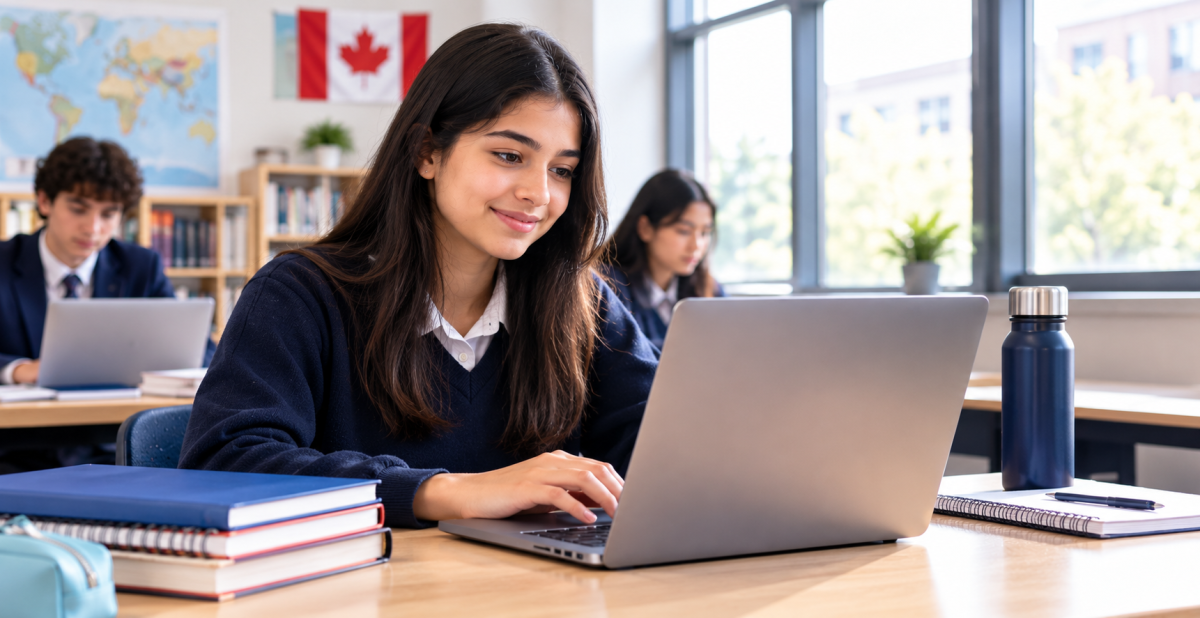
Yes. Most private high schools in Canada, including schools that run a Bring Your Own Device (BYOD) model, expect students to own a personal laptop. Assignments, research projects, standardized testing prep like the OSSLT, and online course modules increasingly need a working device on hand. This applies whether a student studies on campus or takes courses through an online program.
Canadian BYOD frameworks typically call for a screen of at least 11 to 13 inches. This includes the framework used at Canadore College and the one outlined in Alberta’s provincial BYOD guide. Windows, Mac, and Chromebook devices are usually all accepted. Schools generally do not cover loss, theft, or damage to a student’s personal laptop.
USCA Academy has not published one fixed brand or spec requirement. Confirm the exact expectations with admissions before you buy. Most families budget between CAD $400 and $1,200 depending on performance needs, and it helps to buy four to six weeks before the term starts.
Key Highlights: Do High School Students Need Their Own Laptop at a Private School?
- Canadian BYOD frameworks, including Alberta’s provincial guide and Canadore College’s policy, call for a minimum screen size of 11 to 13 inches and a physical keyboard.
- Families budget roughly CAD $400 to $1,200 for a school laptop, from CAD $350-$500 Chromebooks up to CAD $1,300-plus Mac models.
- Schools do not cover loss, theft, or damage to a personally owned device; a basic accidental-damage warranty typically adds CAD $50 to $150.
- USCA Academy has not published a fixed brand or spec sheet, so families should confirm exact requirements with admissions at least six weeks before the term starts.
- A recommended baseline is 8GB of RAM and 256GB of storage, enough for browser tabs, word processing, and video calls without lag.
Why Private Schools Expect You to Have Your Own Laptop
Private high schools build coursework around digital tools now, not paper handouts. USCA Academy’s course catalog spans in-person and online options, and most assignments assume you can type, research, and submit work digitally. A student without a working laptop falls behind within the first week.
Standardized components of the Ontario Secondary School Diploma (OSSD), such as the literacy test, now lean on digital practice tools. Students preparing for the OSSLT practice test usually work through timed exercises on a laptop screen, not a phone. Phone screens are too small for essay-length responses and formatted reading passages.
Online and blended courses add another layer. USCA Academy’s online high school courses let students complete credits remotely, and that format needs a laptop with a stable connection. A shared family desktop rarely works once two or three siblings need it at the same time.
Group projects and research assignments also assume independent access. Teachers post readings, rubrics, and feedback through school portals that are built for laptop browsers first. Waiting for computer lab time between classes puts a student at a real disadvantage.
How a Laptop Fits Into a Typical School Day
Morning classes often start with a digital check-in. Teachers post the day’s agenda, readings, and slideshow through the school portal, and you pull it up in the first few minutes of class. Missing that step means missing instructions for the rest of the period.
Group projects are common in senior grades, especially in courses tied to the university preparation program. You often build a shared document or slide deck with classmates during class time, and that needs a laptop with a real keyboard. A tablet without a keyboard slows collaborative work down considerably.
Homework submission almost always happens online now. Essays, lab reports, and project files get uploaded through a portal with a deadline stamp attached automatically. A laptop turns that into a two-minute task instead of a stressful scramble on a shared family computer at eleven at night.
Later in high school, OUAC applications and college application support also run on a personal laptop. You compare programs, fill out forms, and track deadlines across several weeks, and that is far easier with a device you return to daily.
Study halls and quiet work periods also assume a laptop is available. Students without one often fall back on borrowed devices or printed handouts. That puts them a step behind classmates working directly in the digital gradebook and portal system.
What BYOD Actually Means in Canadian Schools
BYOD stands for Bring Your Own Device. Under this model, the school sets minimum requirements and the family buys and maintains the device. This is now the standard approach at Canadian colleges and a growing number of high schools.
Canadore College’s BYOD program is a well-documented Canadian example. The college publishes minimum specifications by field of study. It expects students to arrive with a working laptop on day one, the same logic private high schools apply.
The Alberta government’s guide, Bring Your Own Device: A Guide for Schools, lays out the framework most Canadian schools still follow. It recommends a minimum screen size, reliable Wi-Fi access on campus, and clear rules about who is responsible if a device is lost or damaged.
Private schools such as USCA Academy generally sit inside this same BYOD tradition rather than issuing school-owned laptops to every student. That keeps costs down for the school and lets families choose a device that fits their budget and their student’s needs.
Minimum Laptop Specs Schools Typically Require
No single Ontario-wide law sets laptop requirements for private schools. Each school sets its own policy, but most Canadian BYOD frameworks converge on similar minimums.
A screen size of 11 to 13 inches is the common baseline across Canadian BYOD guidance. Anything smaller makes reading long documents and formatted tests difficult. A 14 to 15 inch screen is common and still portable enough for a school bag.
Most frameworks also expect a laptop, not a tablet, because typing speed and multitasking matter for essay writing and research. A physical or attachable keyboard is treated as a requirement in nearly every Canadian BYOD policy, including Alberta’s guide.
Storage and battery life matter more than raw processing power for a typical grade 9 through grade 12 course load. A laptop that holds a charge through a full school day avoids the daily hunt for an outlet between classes.
Most private schools, including USCA Academy, provide Wi-Fi access across campus buildings for BYOD devices. Make sure the laptop you buy supports a current Wi-Fi standard, since older laptops sometimes struggle to hold a stable connection in a crowded classroom.
Windows, Mac, or Chromebook: What Actually Works
Canadian BYOD frameworks, including Alberta’s guide, generally accept Windows, Mac, and Chromebook devices without favouring one brand. The deciding factor is usually software compatibility with the school’s learning platform, not the operating system itself.
Windows laptops remain the most common choice because most Canadian workplaces and universities still run Windows-based software by default. A mid-range Windows laptop also tends to cost less than a comparable Mac.
Mac laptops work well for students heading toward design, film, or computer science pathways. They also hold resale value better than most Windows models after two or three years of use.
Chromebooks are the budget option and work fine for browser-based coursework, including e-learning modules and most e-learning day assignments. They struggle with software that needs to run outside a browser, such as certain design or coding programs, so check course requirements first.
Who Pays If the Laptop Is Lost, Stolen, or Damaged
Under the standard Canadian BYOD model, the family owns the laptop and carries the risk. Alberta’s provincial guide states plainly that schools are not responsible for loss, theft, or damage to a personally owned device.
This matters more for boarding students. A student living in accommodation at a school such as USCA Academy’s boarding program in Mississauga should treat a laptop like any other valuable item. Keep it locked away when it is not in use.
Many families add the laptop to a home or renters insurance policy, or buy an extended manufacturer warranty at purchase. A basic accidental-damage warranty typically adds CAD $50 to $150 to the upfront cost and can save hundreds later.
Label the device, back up files to cloud storage weekly, and write down the serial number somewhere separate from the laptop itself. These three habits cover most of the risk a family actually faces during a school year.
Laptop Care and Cybersecurity Basics for Students
A school laptop needs basic upkeep, much like a car needs regular oil changes. Dust out the keyboard and vents every few weeks. Overheating is one of the most common reasons laptops slow down or shut off unexpectedly during class.
Set a strong password and enable two-factor authentication on the student email and school portal accounts. Canadian schools increasingly flag phishing emails as a real risk. Teenagers are common targets for messages pretending to be from a teacher or the school.
Back up schoolwork automatically through a cloud service such as Google Drive or OneDrive, both included free with most school email accounts. Losing a single essay to a crashed hard drive the night before it is due is avoidable with a five-minute setup.
Avoid downloading pirated software or unofficial browser extensions, since these are common sources of malware on student laptops. Stick to the school’s recommended tools and the official app stores for Windows, Mac, and Chromebook devices.
Restart the laptop at least once a week to let system updates install properly. A laptop running months of outdated software is more likely to freeze mid-assignment, right when a student can least afford it.
How to Confirm USCA Academy’s Exact Laptop Requirements
USCA Academy has not published one fixed laptop brand or exact spec sheet publicly, and this article does not claim to know one. Do not buy a laptop assuming a specific requirement without checking first.
Before you purchase anything, contact USCA Academy admissions directly and ask for the current device policy for the student’s grade and program. Requirements can vary between the general OSSD stream, online courses, and university preparation tracks.
If your child is already going through the application process, this is a good question to raise during that conversation, alongside enrollment and orientation details. Admissions staff can confirm current expectations in minutes.
Timing matters. Ask about device requirements at least six weeks before the term starts. That gives you time to order, ship, and set up a laptop without a last-minute rush.
Smart Buying Tips Before You Purchase
Buy based on your child’s actual course load, not marketing claims about the fastest processor available. A student taking mostly writing-heavy and research courses does not need a gaming laptop.
Prioritize battery life and screen size over raw speed for a typical high school workload. Look for at least 8GB of RAM and 256GB of storage, which comfortably handles browser tabs, word processing, and video calls without lag.
Buy from a retailer with a clear return policy and a minimum one-year manufacturer warranty. Extended warranties are worth the extra cost for a device that travels to school daily and gets dropped, bumped, or spilled on eventually.
If cost is a concern, ask USCA Academy about its scholarship policy alongside device planning. Financial aid conversations and technology budgeting often happen around the same time. Refurbished laptops from certified retailers can also cut costs by 20 to 30 percent without sacrificing reliability.
Budgeting for a School Laptop
Laptop prices in Canada vary widely, so set a realistic range before you shop. Entry-level Chromebooks typically start around CAD $350 to $500 and suit browser-based coursework well.
Mid-range Windows laptops with 8GB of RAM and a solid-state drive generally run CAD $700 to $1,000. This range covers most high school needs comfortably. Mac laptops usually start closer to CAD $1,300 for a new entry-level model.
Private school costs already involve tuition. Families researching private school fees in Canada should treat a laptop as a one-time setup cost rather than a recurring expense. A well-maintained laptop typically lasts three to four years of high school use.
Set aside a small annual buffer, roughly CAD $100 to $150, for accessories such as a charger replacement, a protective case, or a mouse. These small costs add up but rarely appear in initial budgeting.
Think of laptop shopping in three simple tiers. The budget tier, roughly CAD $350 to $500, covers Chromebooks and basic Windows models built for browsing and typing. The mid-range tier, CAD $700 to $1,000, adds faster processors and more storage for research-heavy courses. The premium tier, CAD $1,300 and up, covers Mac laptops and high-performance Windows models suited to design or coding work.
When to Buy: A Simple Back-to-School Timeline
Timing your laptop purchase avoids both a summer price spike and a September scramble. Major Canadian retailers such as Best Buy Canada and Costco typically run back-to-school laptop sales throughout August. These sales often carry the year’s bes`t pricing on mid-range models.
Buy six to eight weeks before the term starts if you can. That gives you time to confirm requirements with USCA Academy admissions, test the device, install software, and return it if something is not right.
If you are arriving from overseas, consider buying the laptop in Canada rather than shipping one internationally. This avoids voltage adapter issues and warranty complications across borders. It also avoids customs delays that can leave a new student without a working device for the first week.
Keep the receipt and registration confirmation in a cloud folder, not just on paper. If the laptop needs warranty service later in the year, digital proof of purchase saves time during a busy school term.
Setting Up Your Device for Online Learning and Testing
Once you have a laptop, set it up before the first day of class, not during the first week. Create a student email account, install any required software, and test the login for the school’s learning portal.
Practice tools for provincial requirements matter here too. Students preparing for literacy requirements benefit from working through an OSSLT writing practice exercise on the actual laptop they plan to use. Practicing on a borrowed device is not the same.
A laptop is only half the setup. New international students in Canada also need reliable internet and a phone plan arranged before classes start. Online coursework and school communication both depend on a stable connection.
Update the operating system, install antivirus software, and enable automatic cloud backup before the term begins. These steps take under an hour and prevent most of the technical problems that disrupt a student’s first weeks.
Talk with your child about screen time boundaries and appropriate use before the laptop becomes a daily school tool. Many families set up parental controls or time limits in the first week. Establishing habits early is easier than introducing them later in the term.
Extra Considerations for International Students
If you are moving to Canada from overseas, check the laptop’s power plug before you pack it. Canada uses Type A and Type B outlets at 120 volts. That differs from the 220 to 240 volt systems common across much of Asia, Europe, and Africa.
A laptop bought abroad usually still works fine with a simple plug adapter, since most laptop chargers handle both voltage ranges automatically. Check the charger label for a range such as “100 to 240V” before assuming this applies to your specific model.
Keyboard layout matters too. A laptop bought outside North America sometimes has a different key layout than the standard Canadian arrangement. That difference can slow typing speed during a timed test like the OSSLT.
Warranty coverage rarely transfers across countries. A laptop bought in your home country may not qualify for in-Canada repairs. Buying locally after you arrive, or confirming international warranty coverage before you leave, avoids a costly repair problem later.
If you are unsure what to bring, reach out to USCA Academy before you travel. Admissions staff can point new international students toward the right device decision for their program.
Conclusion
Most private high schools in Canada, including schools following a BYOD model, expect students to arrive with a personal laptop. Assignments, standardized testing prep, and online coursework all depend on it now, and a phone or shared family computer is not a real substitute.
The general framework is consistent across Canadian schools. Expect a screen of at least 11 to 13 inches, Windows, Mac, or Chromebook accepted, and the family responsible for loss or damage. USCA Academy has not published one exact spec sheet, so confirm current requirements with admissions before you spend a dollar.
A working laptop is now as basic to private school life as a backpack or a calculator once was. Treat it as part of your enrollment checklist, not an afterthought you handle the week before classes begin.
If you are researching USCA Academy’s application process or ready to register for the coming term, ask about device expectations at the same time. A short call to admissions now saves a rushed laptop purchase in late August.
FAQs
1.Do high school students need their own laptop at a private school?
Yes, in almost all cases. Canadian private schools increasingly run a BYOD model where families supply a personal laptop that meets minimum specifications set by the school.
2.What laptop specs does a private school in Ontario usually require?
Most Canadian BYOD frameworks call for a screen of at least 11 to 13 inches and a physical keyboard. They also expect enough storage and battery life for a full school day. A common baseline is 8GB of RAM and 256GB of storage. USCA Academy has not published one fixed spec, so confirm details with admissions before you buy.
3.Can students use a Chromebook instead of a Windows or Mac laptop?
Usually yes. Canadian BYOD guidance, including Alberta’s provincial framework, generally accepts Windows, Mac, and Chromebook devices, though some specific software may only run on Windows or Mac.
4.Is the school responsible if a student’s laptop is lost or damaged?
No, typically not. Under the standard Canadian BYOD model described in Alberta’s BYOD guide for schools, families own and insure their own devices. The school is not liable for loss, theft, or damage. Many families cover this through home insurance or an extended manufacturer warranty at purchase.
5.How much should parents budget for a school laptop?
Plan for roughly CAD $400 to $1,200 depending on performance needs, with Chromebooks at the lower end and Mac laptops at the higher end. Add a small yearly buffer for accessories and repairs.
6.When should families buy a laptop before the school year starts?
Aim to purchase and fully set up the laptop four to six weeks before classes begin. This leaves time to confirm requirements with USCA Academy admissions, install software, and test the school’s online systems.